Hi Juan
This is a network-card binding, not a fault, and your own screenshots document it.
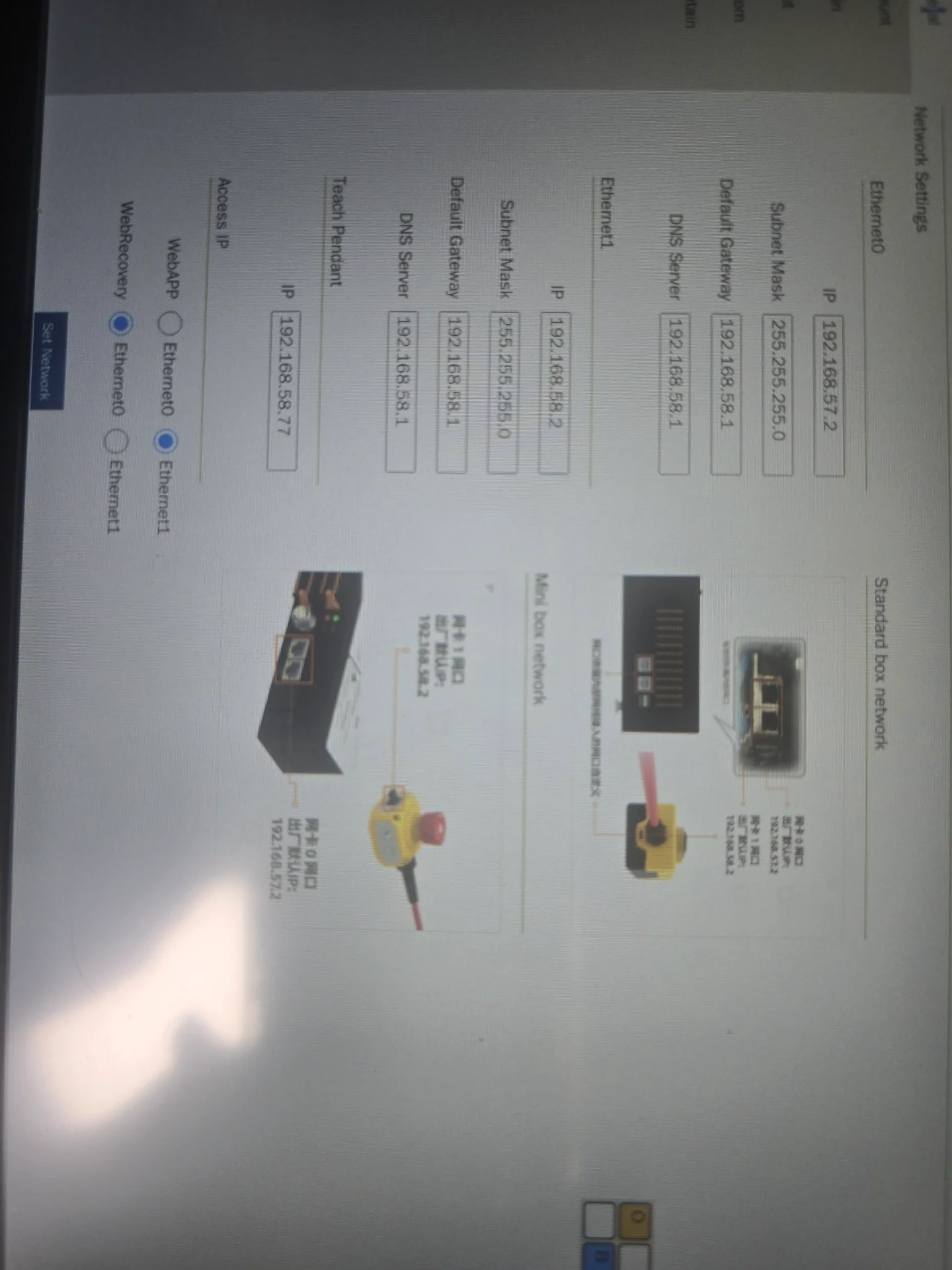
Under Access IP: WebAPP → Ethernet1 (192.168.58.2), WebRecovery → Ethernet0 (192.168.57.2). That configuration predicts exactly what you're seeing: :8050 answers on .57.2 because WebRecovery lives there, and the WebApp doesn't, because it's bound to a card you currently have no path to.
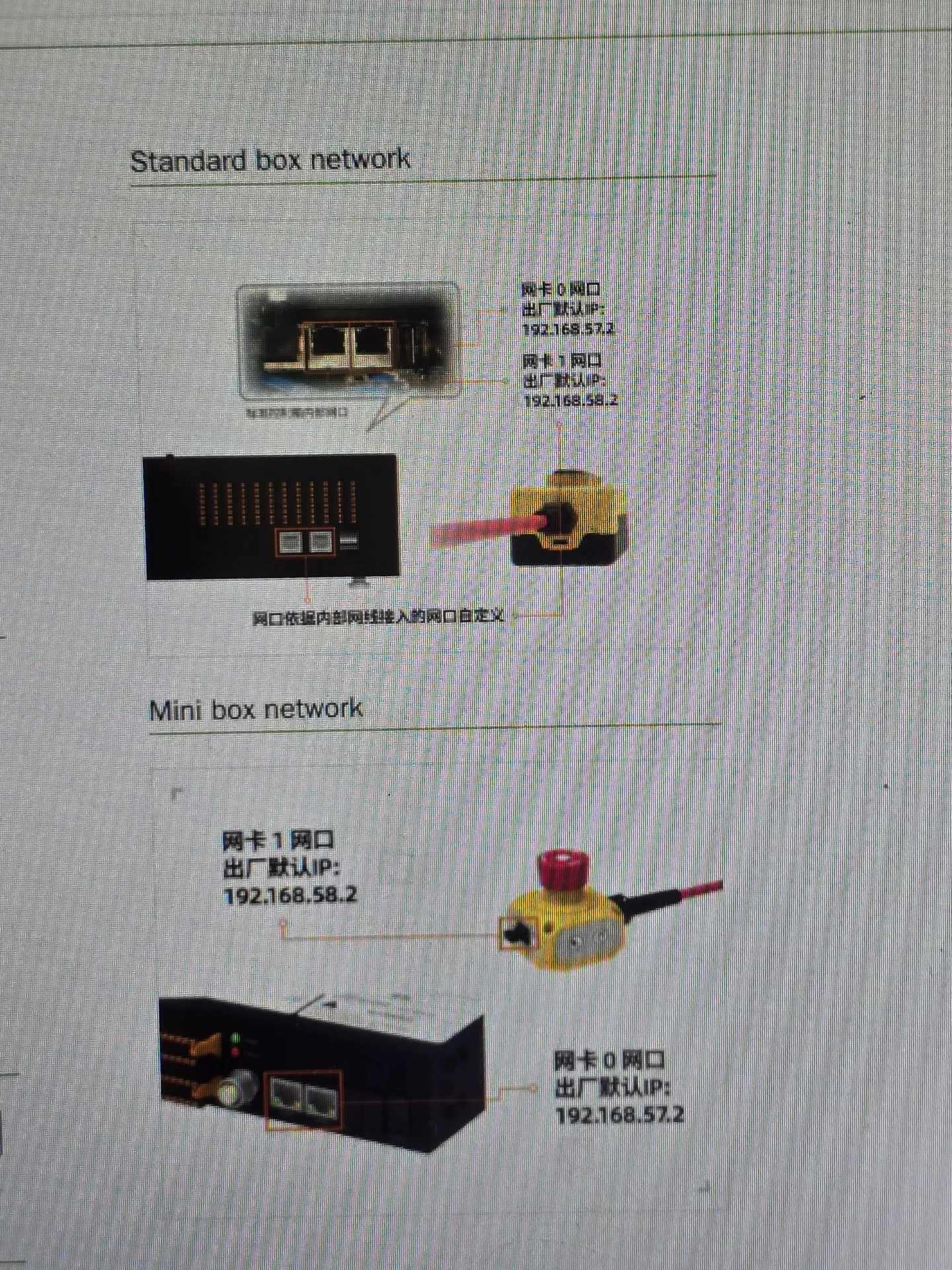
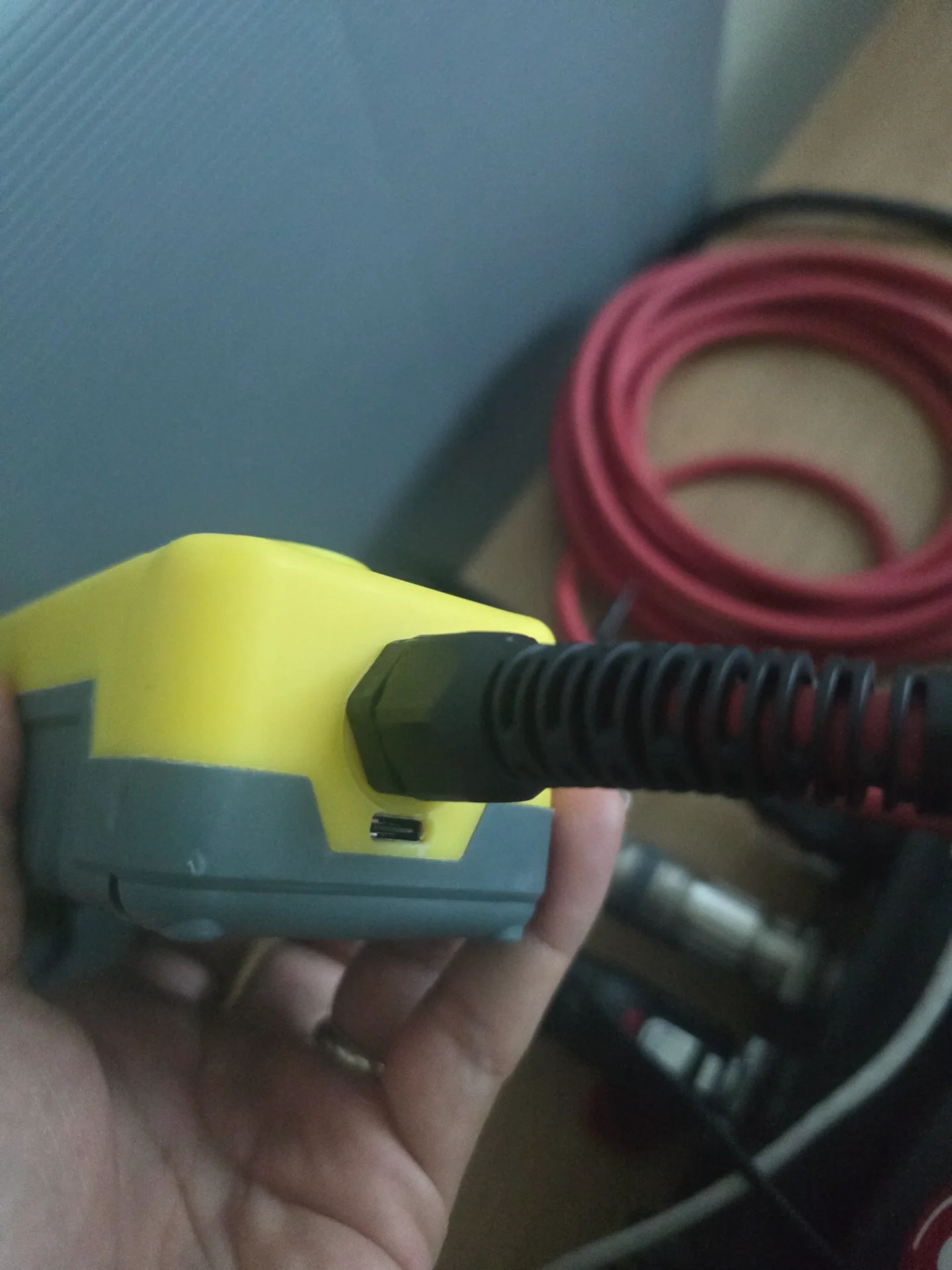
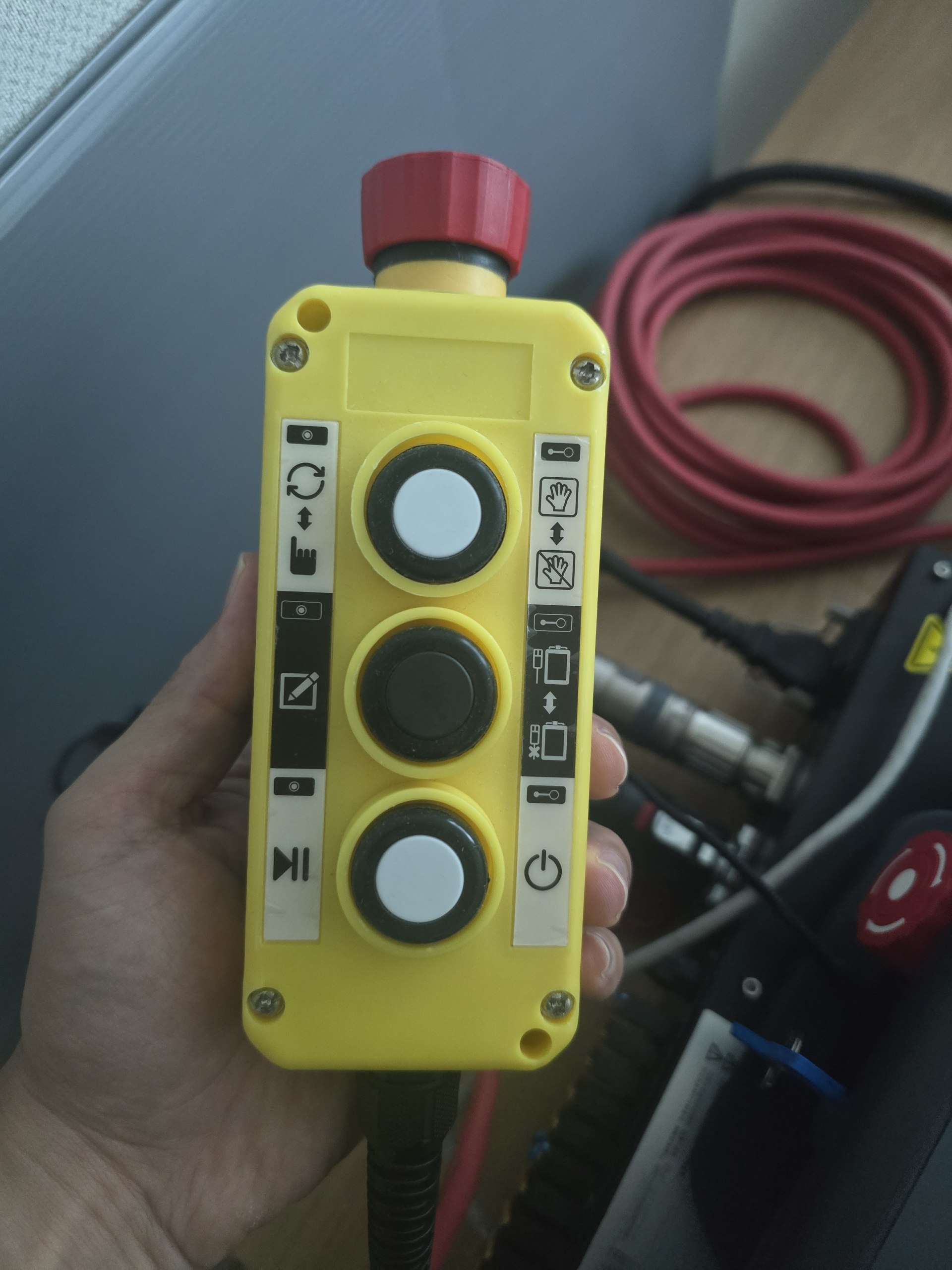
One thing to rule out first: the advice about "connect your PC to the button box interface, 192.168.58.2" describes the Mini box configuration. You have a standard control box, and your photos confirm your button box has no RJ45 — the only socket on it is a small USB-type port. Don't use that port; it isn't a network port.
Two checks, then we'll know exactly which fix you need.
Check 1. PC at 192.168.57.10 / 255.255.255.0, gateway blank, Wi-Fi and all other adapters disabled, no proxy. Open http://192.168.57.2 — plain, no :8050. I suspect you've only ever tried the :8050 URL. If the WebApp answers here, you're done with no changes at all.
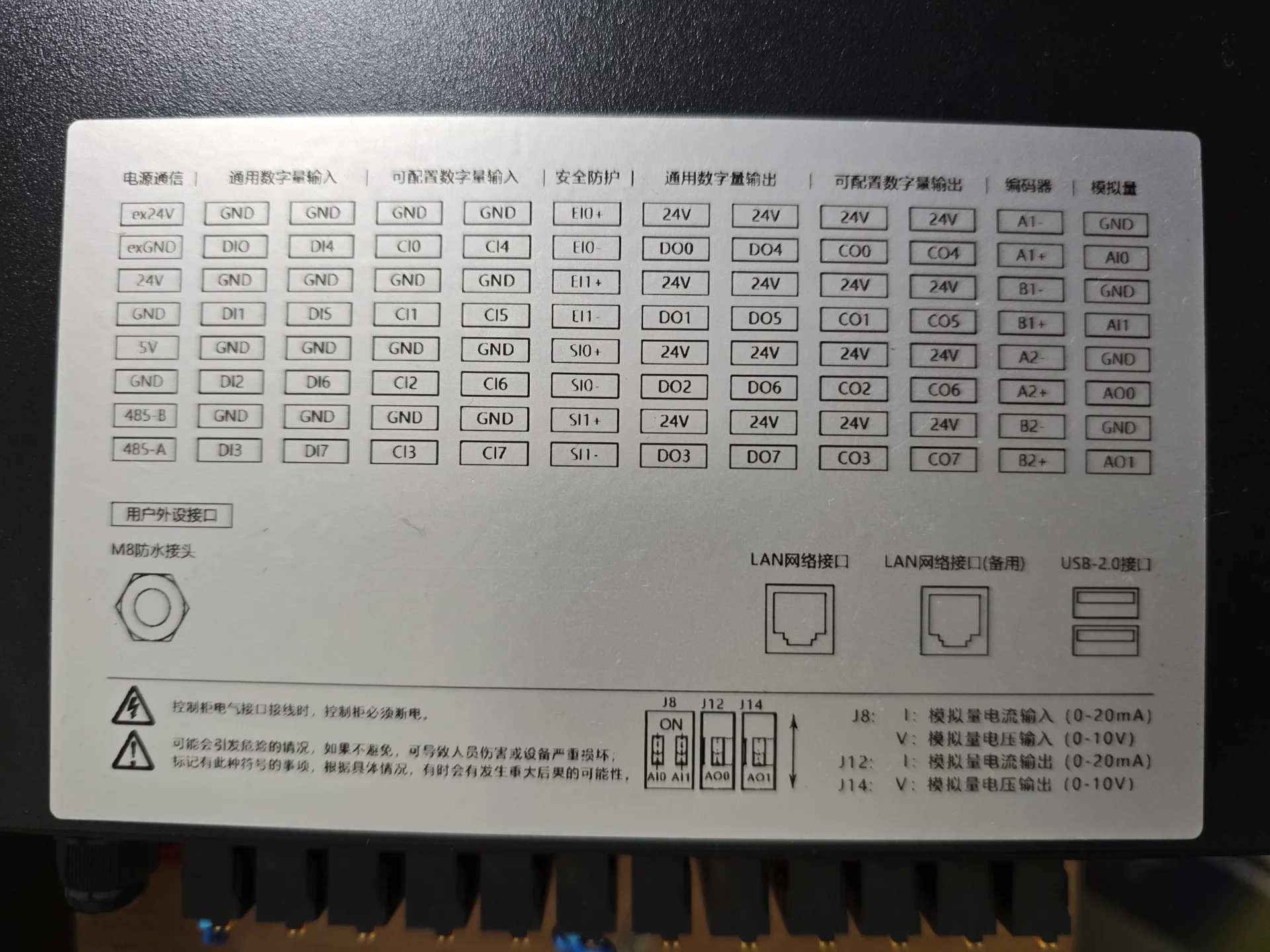
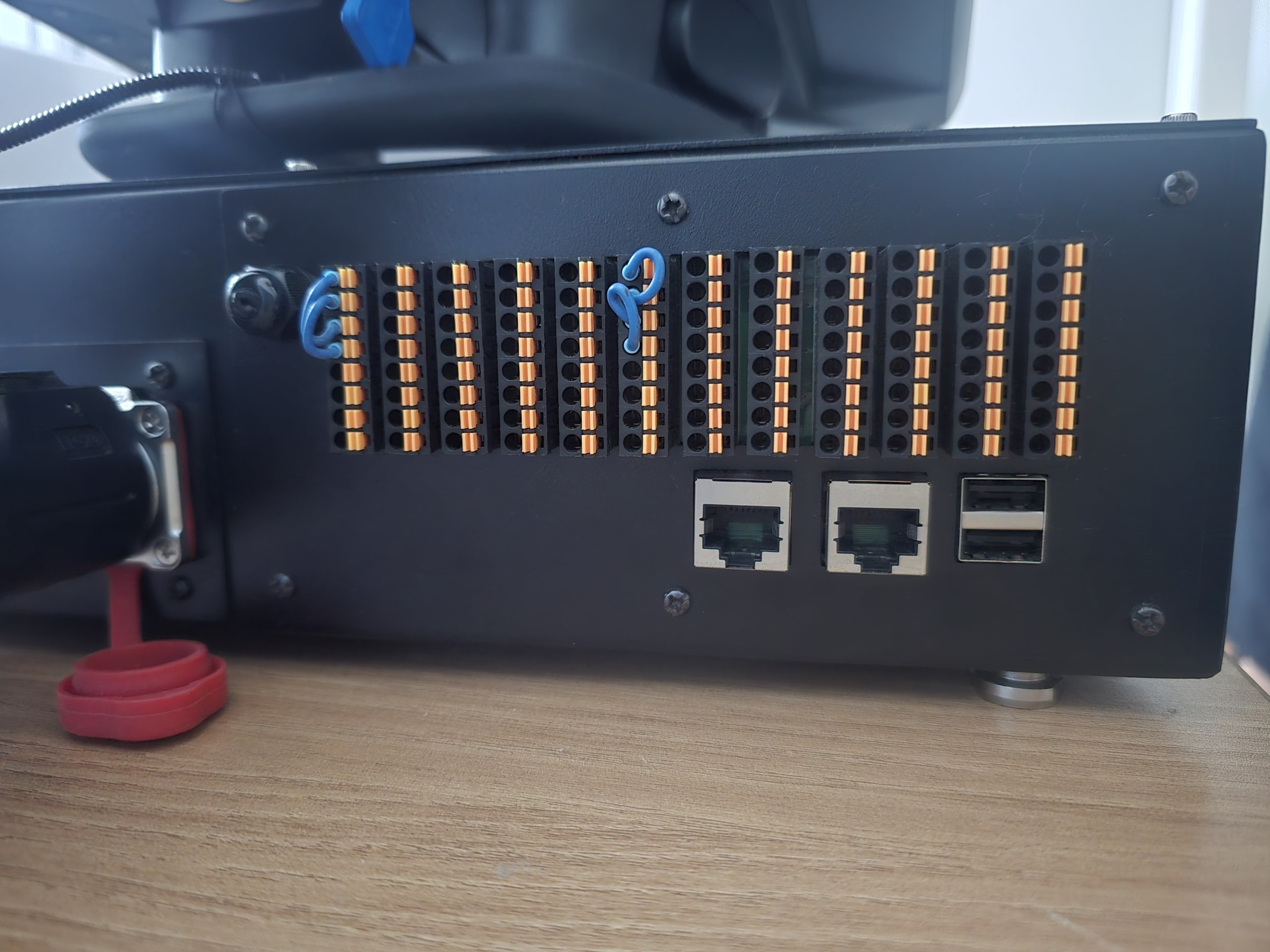
Check 2 — map your two rear jacks. Your jacks have no link LEDs, so confirm the link in Windows instead: ipconfig must show the adapter with your static address, not "Media disconnected". Then test both addresses on both jacks — four combinations, arp -a after each ping:
ping 192.168.57.2ping 192.168.58.2
Jack 1 (LAN)??J
ack 2 (LAN spare)??
Use 192.168.57.10 on the PC for the first column and 192.168.58.10 for the second. This matters because the Fairino diagram in your own screenshot says it outright: "the network ports are assigned according to which internal port the internal cable is plugged into" (网口依据内部网线接入的网口自定义). The jack-to-card mapping is not fixed at the factory — it depends on your unit's internal cabling, and this table is the only way to know yours. If any cell answers on 192.168.58.2, use that jack, open http://192.168.58.2, and you're finished.
Side note: you mention the :8050 page "as seen in the attached image", but that screenshot isn't among your seven attachments — could you re-attach it? Check 2 will confirm the same thing anyway, so it's not blocking.
If the whole .58.2 column is dead, you have two options.
Option A — configuration. Network Settings → Access IP → WebAPP: Ethernet0 → Set Network → reboot. Change nothing else in that step, then open http://192.168.57.2. If the Ethernet0 radio won't select, stop — with the pendant enabled the controller locks the WebApp to card 1 ("When the teach pendant is enabled, WebAPP selects network card 1 by default, and network card 0 is not selectable"), and there's no "Teach Pendant Enable" switch on your 3.5.8 Network Settings page. Don't force it; go to Option B.
Expect the pendant to go blank afterwards — it runs as a client at 192.168.58.77 talking to 192.168.58.2, so your PC becomes the only control point, and you'd revert the setting from the PC. Do this outside production: if the WebApp doesn't come up on .57.2, your only way back in is 192.168.57.2:8050, the system recovery tool. Not a brick, but not where you want to be mid-shift.
Option B — internal re-patching. Per that same diagram, the rear jacks are fed from internal ports and the assignment is configurable — and your rear panel labels them LAN and LAN (spare). Have RobotAnno bring Ethernet1 out to the spare jack. That puts 192.168.58.2 on the back panel and keeps the pendant working. It's the cleaner permanent fix.
Do not move WebRecovery to Ethernet1 (that's your only lifeline), don't change the Ethernet1 address, don't put both cards on the same subnet, and don't factory-reset or reflash — nothing here is damaged; it's configuration and cabling.
Once you're back in, one cleanup for later: Ethernet0's Default Gateway and DNS are set to 192.168.58.1, outside its own subnet. Worth correcting to 192.168.57.1 or blank — but leave it for now, one variable at a time.
Regards